NOX NVR now includes AI Chat. Type a camera name and a time in a sentence, and the matching recording plays right away. Opening a menu, finding the camera, and setting the time collapse into a single question.
How to Use
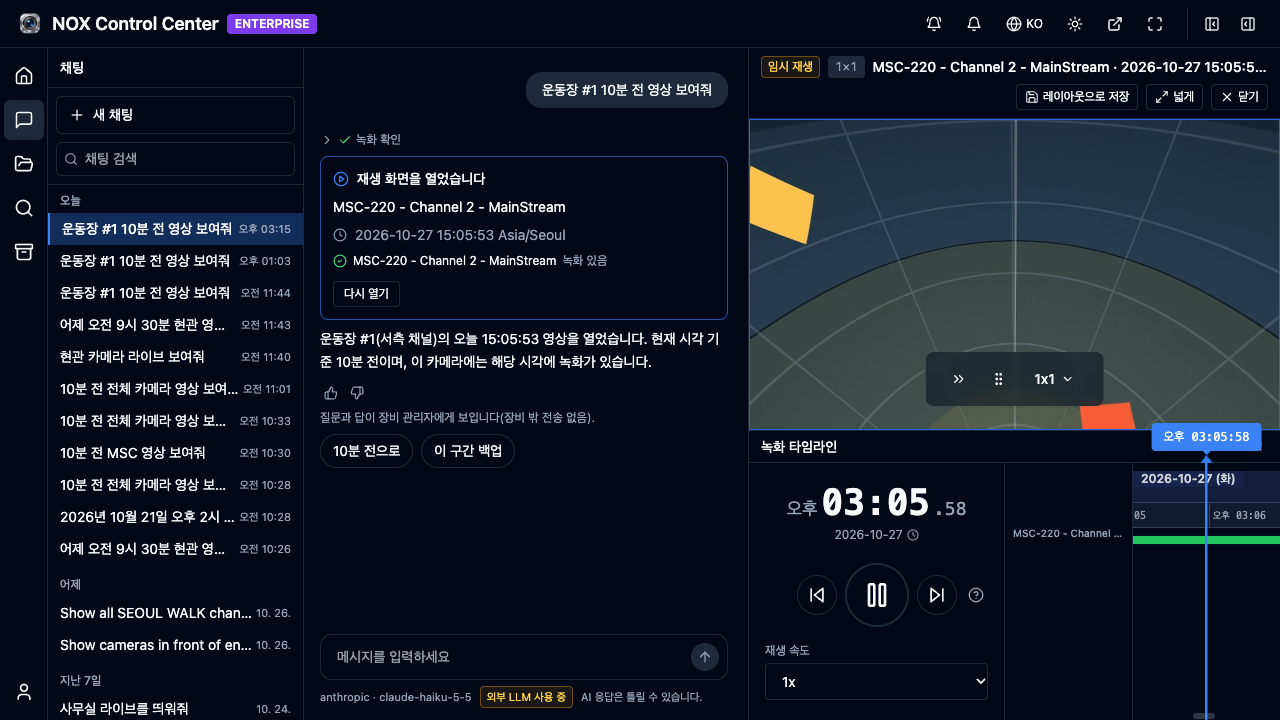
Open Chat from the left menu, type a question, and press Enter. For example:
- Show me yesterday's 9:30 AM entrance footage
- Parking lot footage, last Friday at 3 PM
Cameras are found by name. A question that says "entrance" opens the cameras whose names include "entrance," so it helps to name cameras with the words your site uses. Opened video plays in the result area on the right. Chat only finds and opens recordings; it does not change device settings.
Turning Chat On: Administrator Settings
Administrators turn chat on at Settings > Services > Chat. Choose Anthropic (Claude API) as the provider, enter your own API key, load the model list, and pick a model. Keys are stored encrypted and are not shown again after saving.
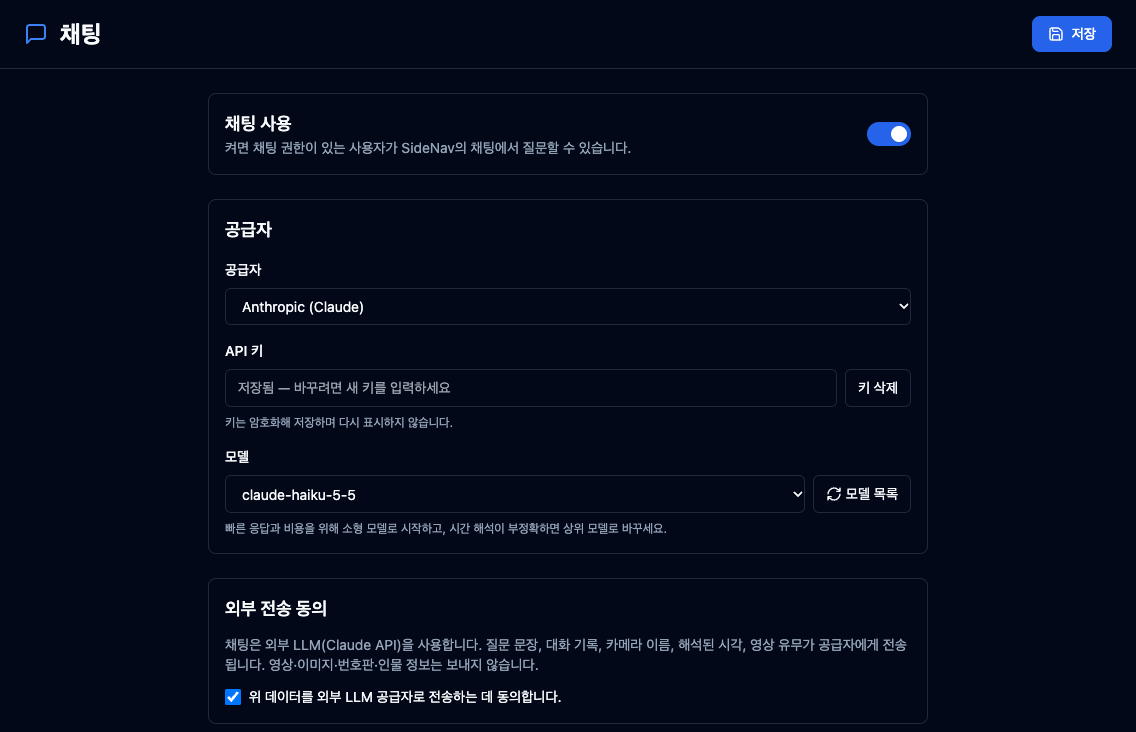
Chat stays off until the external transmission consent box is checked. The consent text says that question text, conversation history, camera names, the interpreted time, and whether video exists are sent to the provider, while video, images, license plates, and personal information are not. License plates or appearance descriptions typed into a question are part of the question text, so they are sent.
Notes from Development
The most useful lesson from building chat was that understanding a question and actually opening the video are two different things. At first, a question counted as a success as soon as the camera and time were resolved, so for a query with no recording, the answer text and the next-action button did not match. Now the outcome depends on whether the playback screen actually opened. Even if the answer says the video was opened, check the per-camera playback result on the result card.
The same device can also connect as an MCP server. Once registered in Claude Code or Claude Desktop, an AI agent can query the device read-only, and no tool changes device state. Like chat, MCP is an ENTERPRISE edition feature and cannot be used on devices with NIS security mode enabled.
We also remember the first day we connected Claude Code to a real device. When we asked about gaps in recordings, the recording-coverage tool and the playback-link tool gave conflicting answers. Claude Code did not repeat that all recordings were empty. Instead, it pointed out that the two results contradicted each other. The cause was a single timezone conversion in one query, and it was fixed before release. The full story is in the MCP server development log.
Current Support
- Edition: Available in the ENTERPRISE edition.
- AI provider: Currently Anthropic (Claude API) only. Customers use their own API key. Support for other LLMs is planned.
- External transmission: Question text and camera names are sent to the provider. Chat can be turned on only after an administrator consents.
- Security mode: Not available when NIS security mode is enabled.
Apply for installation partner consultation: yiyol.com/contact
Related Posts
- Building the NOX MCP Server — Why We Started Read-Only, and the Bug Claude Code Found First — Another route for AI agents to query the same device
- What Is an Agentic AI NVR? The Decisive Difference from an AI NVR — A structure that extends from detection to judgment and action
- Agentic AI with WebHooks: A Complete Guide to Parking Lot Automation — Another way to connect agents with external systems