When an NVR at a site starts misbehaving, the installer or the manufacturer's support team often needs to look at the device directly. The trouble starts the moment you decide how they will get in. Open a port on the router and that path tends to stay open long after the support call ends. Read the admin password out over the phone or a messenger app and nobody remembers to change it afterward. Install a separate remote desktop tool and the device now carries one more piece of software to maintain.
NOX remote support solves this inside the device. The access path opens only while an administrator has switched it on, and it closes by itself when the chosen time runs out. The engineer signs in with a one-time code that is valid for two minutes instead of the admin password, and you can let them in read-only so they cannot change anything. Every time the path is opened or closed, the audit log records who did it and when.
This post walks through the feature in order, using screenshots taken while we switched remote support on and off on a test device. The screenshots show the Korean UI; the captions explain each one.
Opens only when switched on, closes when time runs out
Remote support lives under Settings → System → Remote Support. The menu is visible only to an administrator signed in with admin access.
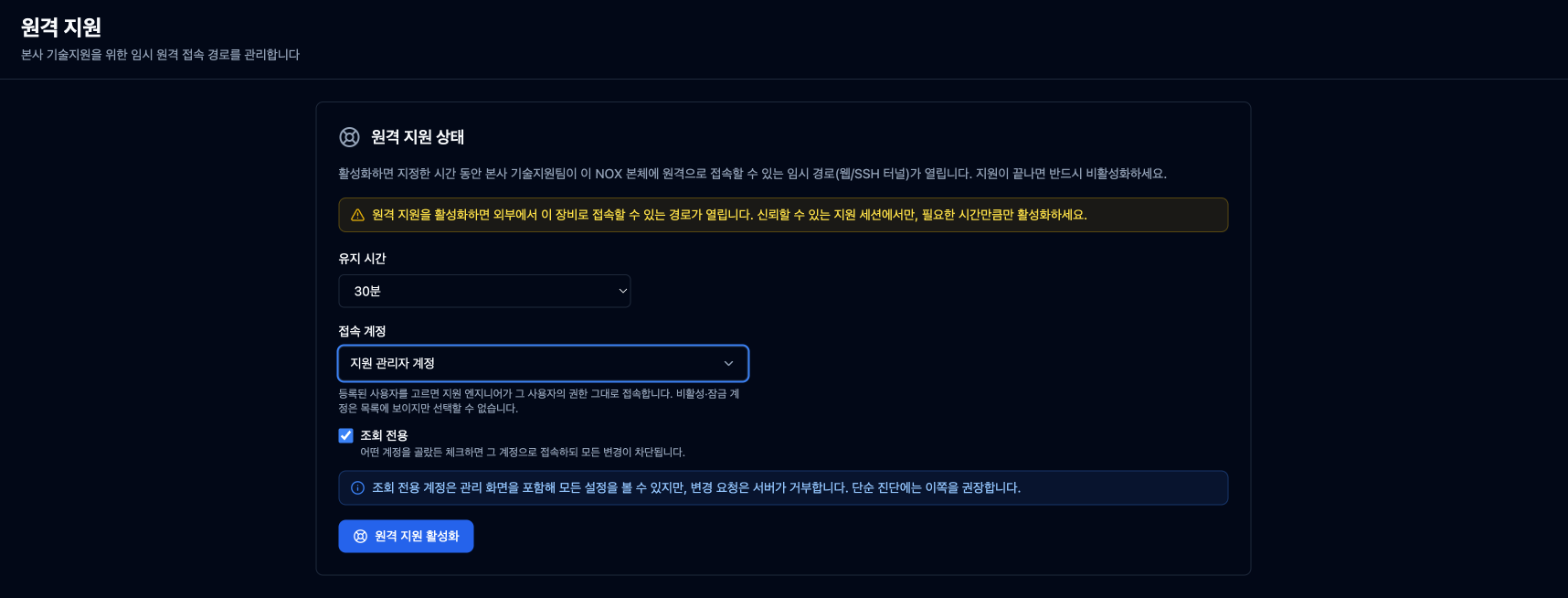
You decide three things before switching it on.
- Duration: 30 minutes, 1 hour, 2 hours, or 4 hours. When the time is up, the path closes automatically, so it does not stay open just because someone forgot to switch it off.
- Access account: The default is the dedicated remote support account. If you pick a specific user registered on the device, the engineer signs in with exactly that user's permissions and can reproduce the problem on the same screens and menus that user sees.
- Read-only: When checked, every change is blocked no matter which account you picked. If the goal is to find the cause of a problem, we recommend checking it.
Click Activate remote support, confirm once more that an external access path will be opened, and the path opens.
A word on how the connection works. When remote support is switched on, the device makes an outbound connection to our relay server (nox.yiyol.com), and the engineer reaches the device through that relay. Because the device starts the connection, there is no need to open a port on the site's router or get a static IP. As long as the device has internet access, it works with no extra configuration.
A two-minute one-time code instead of a password
Once the path is open, the card shows what to hand over to the engineer.
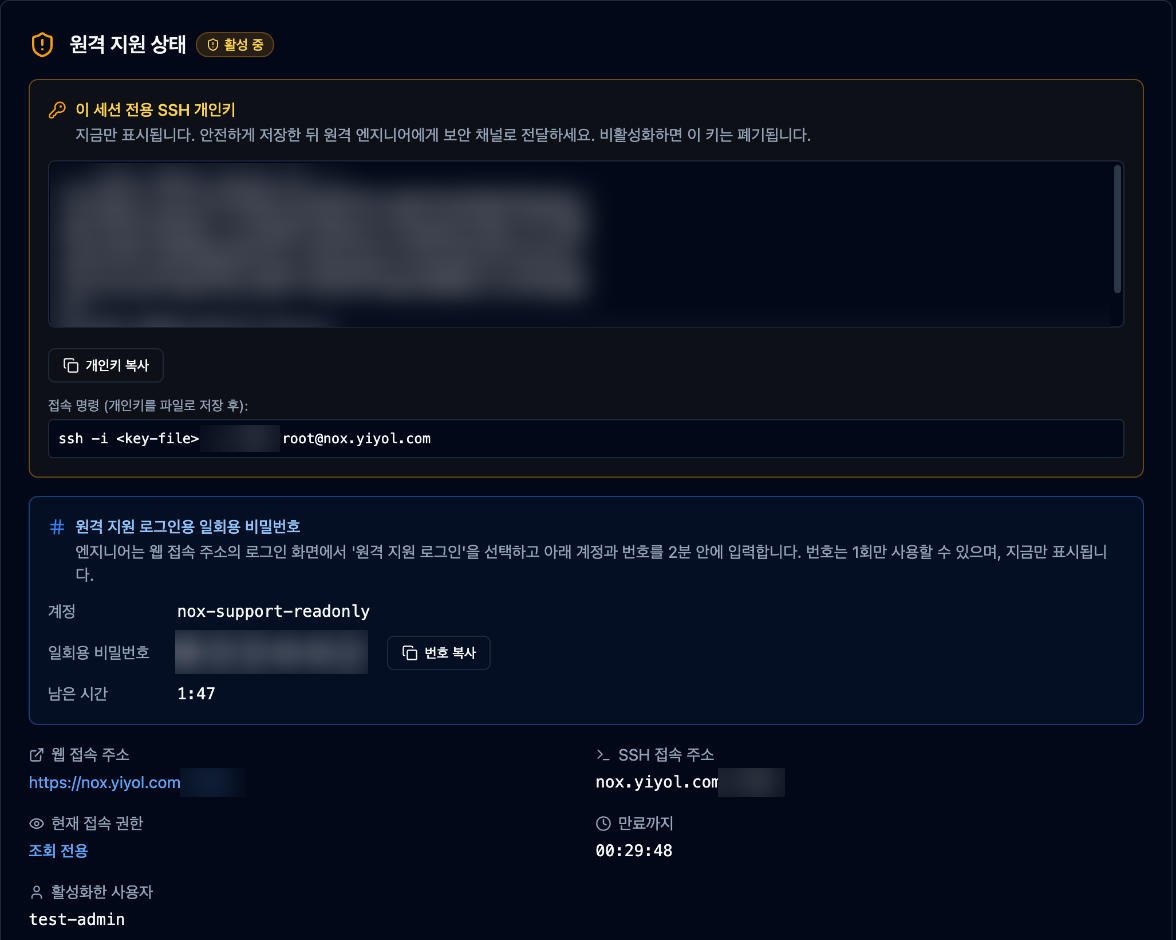
- Web access address: Where the engineer opens the device's management UI. The device's own HTTPS and sign-in rules still apply.
- One-time code: Six digits. It must be used within two minutes and disappears after one successful sign-in. Five wrong attempts discard it, and a new one has to be issued.
- Current access level and time remaining: What permissions the path is open with, and when it will close.
- Session SSH private key: A key for SSH access, for problems that cannot be diagnosed from the UI. The device generates a new one every time remote support is switched on and shows it only once, on this screen. It is not stored on the server, so it cannot be viewed again, and it is discarded when remote support is switched off.
The engineer opens the web address, chooses OTP login on the sign-in screen, and enters the code. No username is needed; the server works out which account to sign in from the code. If the two minutes pass before they sign in, click Reissue one-time code to get a new one, and the old code stops working immediately.
The key point is that the customer's admin password never leaves the device. All the engineer receives is a code that is useless two minutes later.
Engineers get their own accounts
When you choose the dedicated remote support account, the engineer signs in with a system account built into the device. The user management screen shows these accounts separately from regular users.

nox-support: The remote support account that can change settings.nox-support-readonly: The account used when remote support is switched on read-only.
Neither account has a regular password, so the only way to sign in is with a one-time code. As the screenshot shows, there are no edit or delete buttons either; requests to rename them, set a password, or change their roles are all rejected. Everything the engineer does is recorded under these account names, so the audit log later shows clearly what the device's administrator did and what the engineer did.
When the engineer signs in as a registered user, actions are recorded under that user's name, but each record also carries a marker showing it came from a remote support session.
What read-only changes
Most remote support requests are about finding a cause, such as "why does recording on this camera keep dropping?" For those, read-only is the safest choice.
| In a read-only session | |
|---|---|
| Can view | Live view, recordings, search, events, and every management screen: settings, users, network, storage, logs, and update status |
| Cannot do | Any change: adding cameras, saving settings, creating users, storage operations, file uploads, saving layouts, and so on |
| Also blocked | Running AI search. It looks like a read, but it uses GPU and storage, so it is blocked. Viewing existing results is allowed |
Read-only does not hide any screens. The engineer sees the same diagnostic information as an administrator, and the server rejects only the requests that change something. The block is applied once, at the server's authentication step, rather than screen by screen, so a change cannot slip through because one screen or API was missed.
Even with read-only off, a few things cannot be done remotely. Permanently deleting a camera or recording that still has footage, replacing a camera device, and shutting the device down are all rejected in a remote support session. Actions that cannot be undone are left to the administrator on site.
A record of who opened and closed it, and when
Switching remote support on and off is recorded in the audit log. Below are the records from our test device: remote support switched on, and switched off again once the screenshots were done.
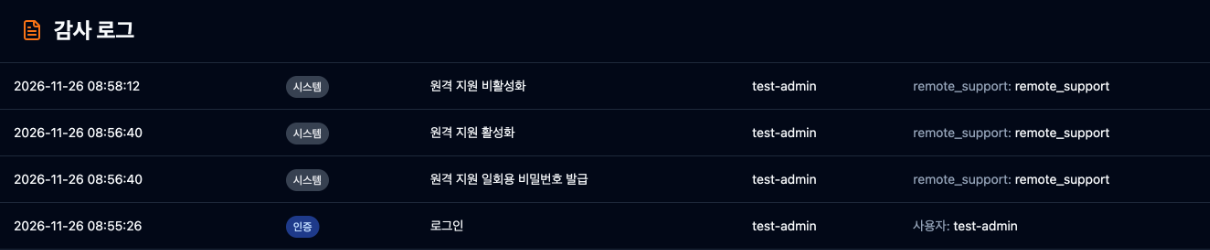
Activation, code issuance, and deactivation each appear with the time and the administrator who did it. Closing because the duration ran out, and cleanup after a reboot, are recorded the same way. The engineer's sign-ins and failed sign-ins are recorded separately under the remote support account name.
When a customer's security officer asks "when did an outside vendor get into our device?", this record is the answer.
Closed as soon as it is done
Remote support closes in three ways.
- The administrator switches it off: Clicking Deactivate on the card closes the path immediately.
- The duration runs out: The device closes the path itself when the time is up.
- A reboot: Once the device restarts, the remote support path does not reopen.
In every case, the issued one-time code and SSH key are discarded and the engineer's session ends with it. Only the engineer's session ends; the administrator on site and other users keep their screens.
Working side by side is accounted for too. The engineer signing in does not end the session of the administrator who switched remote support on, and a banner stays at the top of the engineer's screen showing that this is a remote support session, with what permissions and how much time is left, so both sides see the same thing.
When it is not available
Check these conditions before relying on it.
- Not available in NIS security mode. In NIS (Korea's National Intelligence Service) security mode, outbound connections to an external relay are not allowed by policy, so the menu does not appear. For public-sector sites, check this first.
- Cannot be newly switched on when the license is unregistered or expired (Free mode). Switching it off is always possible, though. This ensures an open path can still be closed if the license expires while remote support is on.
- The device needs internet access. It must be able to make the outbound connection to our relay server. If remote access is not possible, the device's local console is the fallback.
How to explain it to customers
When installers propose a maintenance contract, the end customer's concern about remote support is usually "can outsiders get into our device whenever they like?" You can explain it like this:
"Remote support opens only when your administrator switches it on, and it closes automatically when the chosen time runs out. We never receive your admin password; we sign in with a one-time code that is valid for two minutes. For inspections we can be let in read-only so settings cannot be changed, and every time the path is opened or closed is recorded in the device's audit log."
Frequently asked questions
Do I need port forwarding on the router for NVR remote support?
No. When remote support is switched on, the device makes an outbound connection to our relay server (nox.yiyol.com), and the engineer reaches the device through that relay. There is no need to open a port on the site's router or get a static IP; if the device is connected to the internet, it works right away.
Do I have to give the remote support engineer the admin password?
No. The engineer signs in with a six-digit one-time code that must be used within two minutes of being issued and disappears after one successful sign-in. Five wrong attempts discard it, and a new one has to be issued.
If I forget to switch off remote support, does the path stay open?
No. When the duration chosen at switch-on (30 minutes, 1 hour, 2 hours, or 4 hours) runs out, the device closes the path by itself, and a reboot does not reopen it. When the path closes, the one-time code and SSH key are discarded and the engineer's session ends with it.
Can I stop the remote support engineer from changing settings?
Yes. Switch it on with read-only checked and every change is blocked, whichever account you picked. The engineer sees the same management screens as an administrator, and the server rejects only requests that change something. Even without read-only, permanently deleting recordings, replacing a camera device, and shutting down the device are rejected in a remote support session.
Can I see when an outside vendor accessed our device?
Yes, in the audit log. Switching remote support on, issuing a one-time code, and switching it off are each recorded with the time and the name of the administrator who did it, and the engineer's sign-ins and failed sign-ins are recorded separately under the remote support account name.
Closing
The risk in remote support is less the access itself than what is left behind after the support ends: an open port, a password that was shared, a remote access tool that was installed. NOX remote support opens the path only when switched on, uses a one-time code instead of a password, and discards the key and session when it ends, so the only thing left behind is the audit record.
If you want to know how to run remote support at your sites, or how support works at NIS security mode sites, please request an installer partner consultation.
Remote support is available on licensed devices and is not offered in NIS security mode. The device needs internet access.