현장 NVR에 문제가 생기면 설치업체나 제조사 기술지원팀이 장비를 직접 봐야 할 때가 많습니다. 그런데 원격으로 들어가는 방법을 정하는 순간부터 고민이 시작됩니다. 공유기에 포트를 열어 두면 지원이 끝난 뒤에도 그 경로가 남기 쉽고, 관리자 계정의 비밀번호를 전화나 메신저로 알려 주면 그 비밀번호를 언제 바꿔야 할지 아무도 챙기지 않습니다. 원격 데스크톱 프로그램을 따로 설치하는 방식은 장비에 관리할 소프트웨어가 하나 더 늘어납니다.
NOX의 원격 지원은 이 문제를 장비 안에서 해결합니다. 관리자가 버튼을 눌러 켠 동안에만 접속 경로가 열리고, 정한 시간이 지나면 저절로 닫힙니다. 엔지니어는 관리자 비밀번호 대신 2분 동안만 유효한 일회용 비밀번호로 들어오며, 필요하면 아무것도 바꿀 수 없는 조회 전용으로만 들어오게 할 수 있습니다. 누가 언제 경로를 열고 닫았는지는 감사 로그에 남습니다.
이 글은 테스트 장비에서 원격 지원을 직접 켜고 끄면서 찍은 화면을 따라 순서대로 설명합니다.
켤 때만 열리고, 시간이 지나면 닫힌다
원격 지원은 설정 → 시스템 → 원격 지원 메뉴에 있습니다. 관리자 계정으로, 관리 접속으로 로그인했을 때만 보이는 메뉴입니다.
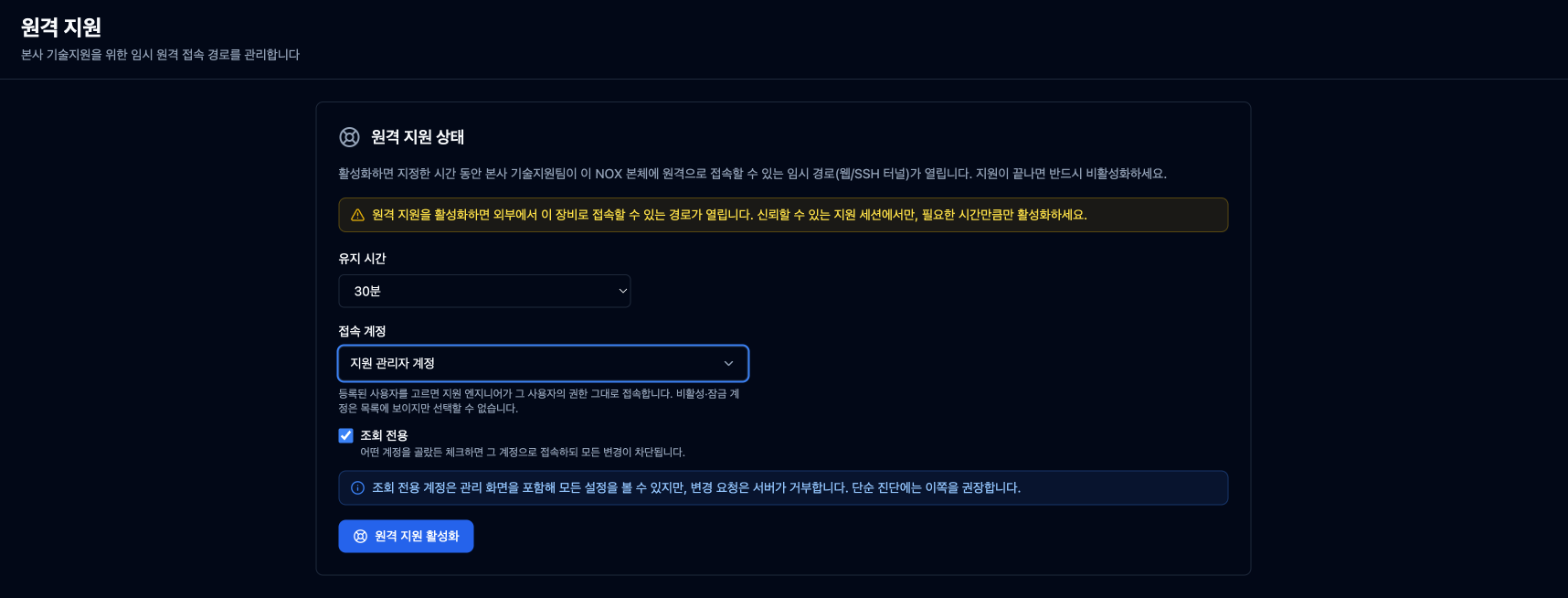
켜기 전에 정하는 것은 세 가지입니다.
- 유지 시간: 30분, 1시간, 2시간, 4시간 중에서 고릅니다. 이 시간이 지나면 경로가 자동으로 닫힙니다. 지원이 끝났는데 끄는 것을 잊어도 경로가 계속 열려 있지 않습니다.
- 접속 계정: 기본값은 원격 지원 전용 계정입니다. 장비에 등록된 특정 사용자를 고르면 엔지니어가 그 사용자의 권한 그대로 들어와, 그 사용자가 실제로 보는 화면과 메뉴에서 문제를 재현할 수 있습니다.
- 조회 전용: 체크하면 어떤 계정을 골랐든 모든 변경이 막힙니다. 원인을 살펴보는 것이 목적이라면 체크해 두는 것을 권합니다.
원격 지원 활성화를 누르면 외부 접속 경로가 열린다는 확인 창이 한 번 더 뜨고, 확인하면 경로가 열립니다.
연결 방식도 짚어 두겠습니다. 원격 지원을 켜면 장비가 본사 중계 서버(nox.yiyol.com) 쪽으로 바깥으로 나가는 연결을 만들고, 엔지니어는 그 중계 서버를 거쳐 장비에 들어옵니다. 장비 쪽에서 먼저 연결을 만들기 때문에 현장 공유기에 포트를 열거나 고정 IP를 받을 필요가 없습니다. 장비가 인터넷에 연결되어 있으면 별도 설정 없이 바로 동작합니다.
비밀번호 대신 2분짜리 일회용 번호
경로가 열리면 카드에 엔지니어에게 넘길 정보가 표시됩니다.
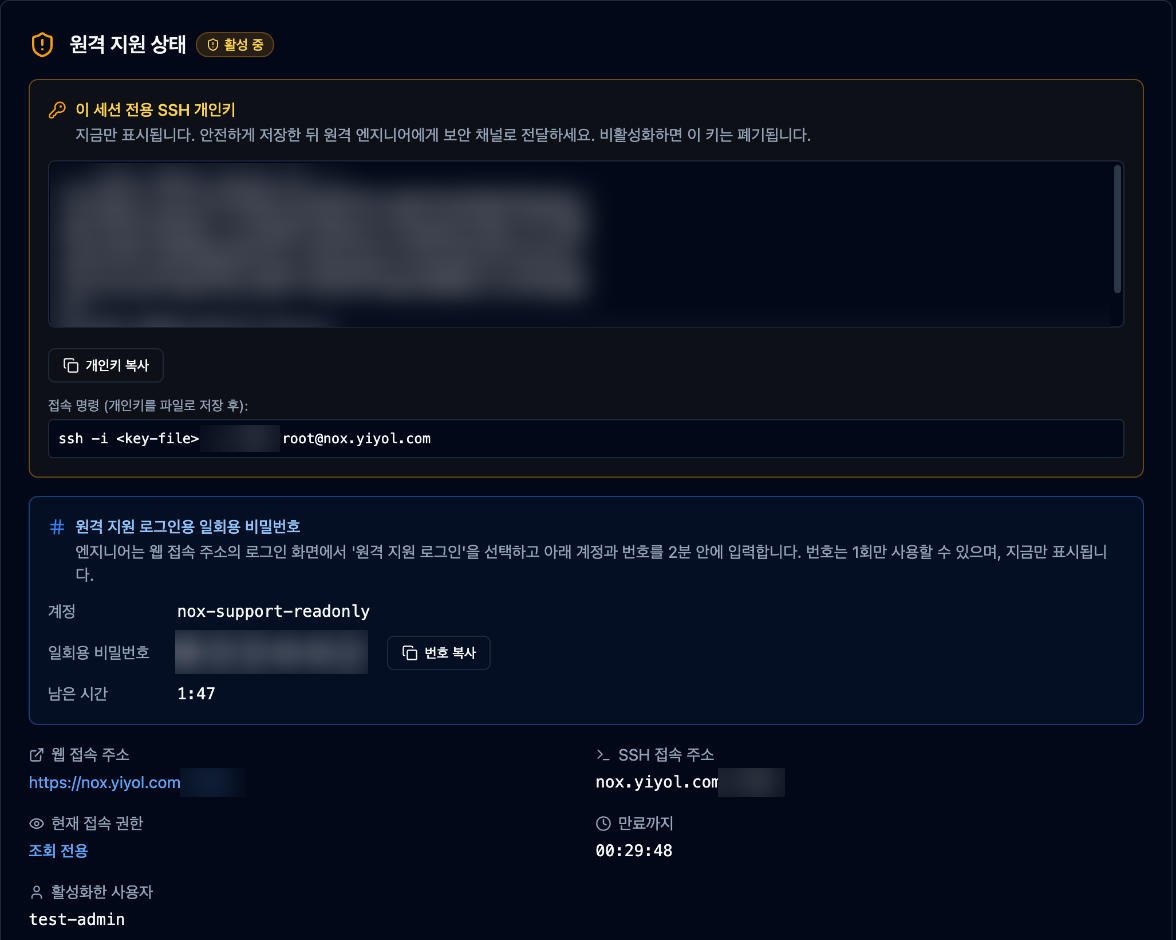
- 웹 접속 주소: 엔지니어가 장비의 관리 화면에 들어올 주소입니다. 장비에 원래 적용된 HTTPS와 로그인 절차가 그대로 적용됩니다.
- 일회용 비밀번호: 6자리 숫자입니다. 발급 후 2분 안에 써야 하고, 한 번 로그인하면 사라집니다. 다섯 번 틀리면 폐기되어 다시 발급해야 합니다.
- 현재 접속 권한과 만료까지 남은 시간: 지금 어떤 권한으로 열려 있는지, 언제 닫히는지 보여 줍니다.
- 세션 전용 SSH 개인키: 화면 너머의 문제를 봐야 할 때 쓰는 SSH 접속용 키입니다. 장비가 원격 지원을 켤 때마다 새로 만들고, 이 화면에서 한 번만 보여 줍니다. 서버에 저장하지 않으므로 다시 볼 수 없고, 원격 지원을 끄면 폐기됩니다.
엔지니어는 웹 접속 주소를 열고 로그인 화면에서 OTP 로그인을 고른 뒤 전달받은 번호만 입력합니다. 사용자 이름을 따로 넣을 필요가 없습니다. 번호를 보고 서버가 어느 계정으로 들어올지 판단합니다. 2분 안에 로그인하지 못했다면 일회용 비밀번호 재발급 버튼으로 새 번호를 받으면 되고, 이때 이전 번호는 바로 무효가 됩니다.
여기서 핵심은 고객 관리자의 비밀번호가 장비 밖으로 나가지 않는다는 점입니다. 엔지니어에게 넘어가는 것은 2분 뒤면 쓸 수 없는 번호뿐입니다.
엔지니어 전용 계정은 따로 있다
원격 지원 전용 계정을 고르면 엔지니어는 장비에 내장된 시스템 계정으로 로그인합니다. 사용자 관리 화면에서 보면 이 계정들이 일반 사용자와 구분되어 있습니다.

nox-support: 설정 변경까지 할 수 있는 원격 지원 계정입니다.nox-support-readonly: 조회 전용으로 켰을 때 쓰이는 계정입니다.
두 계정에는 일반 비밀번호가 없어서 일회용 번호로만 로그인할 수 있습니다. 화면에서 보듯 수정·삭제 버튼도 없습니다. 이름을 바꾸거나 비밀번호를 정하거나 역할을 바꾸는 요청은 모두 거부됩니다. 엔지니어가 한 일은 이 계정 이름으로 기록되므로, 나중에 감사 로그에서 장비 관리자가 한 일과 엔지니어가 한 일을 구분할 수 있습니다.
등록된 사용자를 골라 들어온 경우에는 그 사용자의 이름으로 기록되지만, 기록마다 원격 지원으로 들어온 세션이었다는 표시가 함께 남습니다.
조회 전용으로 열면 무엇이 달라지나
원격 지원을 요청하는 상황의 대부분은 "왜 이 카메라 녹화가 끊기는지 봐 달라"처럼 원인을 찾는 일입니다. 이럴 때는 조회 전용이 가장 안전합니다.
| 구분 | 조회 전용 세션에서 |
|---|---|
| 볼 수 있는 것 | 라이브, 녹화, 검색, 이벤트, 그리고 설정·사용자·네트워크·저장소·로그·업데이트 상태 등 관리 화면 전부 |
| 할 수 없는 것 | 카메라 추가, 설정 저장, 사용자 생성, 저장소 조작, 파일 업로드, 레이아웃 저장 등 모든 변경 |
| 따로 막는 것 | AI 검색 실행. 조회처럼 보이지만 GPU와 저장소를 쓰는 작업이라 막고, 이미 만들어진 결과를 보는 것은 됩니다 |
조회 전용이라고 볼 수 있는 화면이 줄어들지는 않습니다. 진단에 필요한 정보는 관리자와 똑같이 보고, 바꾸는 요청만 서버가 거부합니다. 이 차단은 특정 화면이 아니라 서버의 인증 단계에서 일괄 적용되므로 어느 화면이나 API 하나가 빠져 있어서 변경이 새어 나가는 일이 없습니다.
조회 전용을 끄고 열어도 몇 가지는 원격으로 할 수 없습니다. 녹화 영상이 남아 있는 카메라나 녹화의 영구 삭제, 카메라 장치 교체, 장비 전원 끄기는 원격 지원 세션에서 거부됩니다. 되돌릴 수 없는 작업은 현장의 관리자가 직접 하도록 남겨 둔 것입니다.
누가 언제 열고 닫았는지 남는다
원격 지원을 켜고 끈 기록은 감사 로그에 남습니다. 아래는 테스트 장비에서 원격 지원을 켜고, 캡처를 마친 뒤 끈 기록입니다.
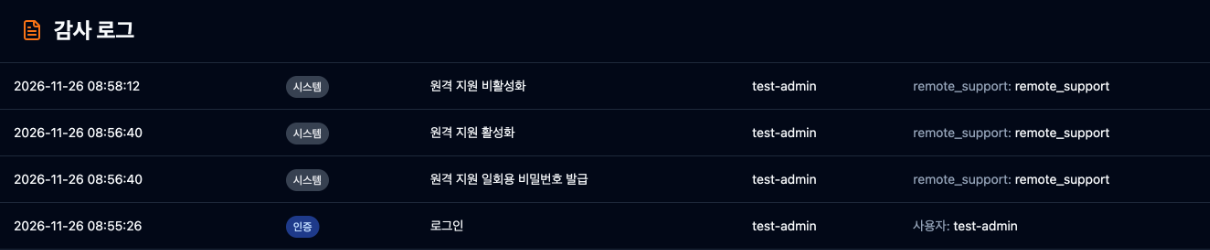
활성화, 일회용 비밀번호 발급, 비활성화가 각각 시각과 실행한 관리자 이름과 함께 기록되어 있습니다. 유지 시간이 다 되어 자동으로 닫힌 경우와 재부팅으로 정리된 경우도 같은 방식으로 남습니다. 엔지니어의 로그인과 로그인 실패는 원격 지원 계정 이름으로 따로 기록됩니다.
고객사의 보안 담당자가 "외부 업체가 우리 장비에 언제 들어왔느냐"고 물으면 이 기록을 보여 주면 됩니다.
끝나면 바로 닫힌다
원격 지원이 닫히는 경우는 세 가지입니다.
- 관리자가 직접 끔: 카드의 비활성화 버튼을 누르면 경로가 바로 닫힙니다.
- 유지 시간 만료: 정한 시간이 지나면 장비가 스스로 경로를 닫습니다.
- 재부팅: 장비를 다시 켜면 원격 지원 경로는 다시 열리지 않습니다.
어느 경우든 경로가 닫히면 발급된 일회용 번호와 SSH 키가 폐기되고, 들어와 있던 엔지니어의 세션도 함께 끝납니다. 이때 끝나는 것은 엔지니어의 세션뿐입니다. 현장에서 같은 화면을 보던 관리자나 다른 사용자의 화면은 끊기지 않습니다.
관리자와 엔지니어가 같은 화면을 보며 함께 작업하는 상황도 고려되어 있습니다. 엔지니어가 들어와도 원격 지원을 켠 관리자의 세션이 끊기지 않고, 엔지니어의 화면 위쪽에는 원격 지원 세션이라는 안내 띠가 계속 떠 있어 지금 어떤 권한으로, 얼마나 남았는지를 양쪽이 같이 볼 수 있습니다.
쓸 수 없는 경우
도입 전에 확인해야 할 조건입니다.
- NIS 보안 모드에서는 쓸 수 없습니다. 외부 중계 서버로 나가는 연결 자체가 정책상 허용되지 않기 때문에 메뉴가 나타나지 않습니다. 공공기관 현장이라면 이 점을 먼저 확인해야 합니다.
- 라이선스가 등록되지 않았거나 만료된 장비(Free 모드)에서는 새로 켤 수 없습니다. 다만 이미 켜져 있던 원격 지원을 끄는 것은 언제나 가능합니다. 켜진 채로 라이선스가 만료되어 열린 경로를 닫지 못하는 일이 없도록 한 것입니다.
- 장비가 인터넷에 연결되어 있어야 합니다. 장비가 본사 중계 서버로 나가는 연결을 만들 수 있어야 합니다. 원격으로 들어갈 수 없는 상황이라면 장비 앞 화면(로컬 콘솔)이 대안입니다.
고객에게는 이렇게 설명하세요
설치업체가 유지보수 계약을 제안할 때, 최종 발주처가 원격 지원에서 걱정하는 것은 대개 "외부에서 우리 장비에 마음대로 들어올 수 있느냐"입니다. 이렇게 설명할 수 있습니다.
"원격 지원은 귀사 관리자가 직접 켤 때만 열리고, 정한 시간이 지나면 자동으로 닫힙니다. 저희는 관리자 비밀번호를 받지 않고, 2분 동안만 쓸 수 있는 일회용 번호로 들어갑니다. 점검만 할 때는 조회 전용으로 열어 설정을 바꿀 수 없게 할 수 있고, 언제 열고 닫았는지는 장비의 감사 로그에 남습니다."
자주 묻는 질문
NVR 원격 지원을 받으려면 공유기 포트포워딩이 필요한가요?
필요 없습니다. 원격 지원을 켜면 장비가 본사 중계 서버(nox.yiyol.com) 쪽으로 바깥으로 나가는 연결을 만들고, 엔지니어는 그 중계 서버를 거쳐 장비에 들어옵니다. 현장 공유기에 포트를 열거나 고정 IP를 받을 필요가 없고, 장비가 인터넷에 연결되어 있으면 바로 동작합니다.
원격 지원 엔지니어에게 관리자 비밀번호를 알려 줘야 하나요?
알려 주지 않아도 됩니다. 엔지니어는 6자리 일회용 비밀번호로 로그인하며, 이 번호는 발급 후 2분 안에 써야 하고 한 번 로그인하면 사라집니다. 다섯 번 틀리면 폐기되어 다시 발급해야 합니다.
원격 지원을 끄는 것을 잊으면 경로가 계속 열려 있나요?
아닙니다. 켤 때 정한 유지 시간(30분, 1시간, 2시간, 4시간)이 지나면 장비가 스스로 경로를 닫고, 장비를 재부팅해도 경로는 다시 열리지 않습니다. 경로가 닫히면 일회용 번호와 SSH 키가 폐기되고 들어와 있던 엔지니어의 세션도 함께 끝납니다.
원격 지원 엔지니어가 설정을 바꾸지 못하게 할 수 있나요?
조회 전용을 체크하고 켜면 어떤 계정을 골랐든 모든 변경이 막힙니다. 관리 화면은 관리자와 똑같이 볼 수 있고 바꾸는 요청만 서버가 거부합니다. 조회 전용이 아니어도 녹화 영상의 영구 삭제, 카메라 장치 교체, 장비 전원 끄기는 원격 지원 세션에서 거부됩니다.
외부 업체가 언제 장비에 접속했는지 확인할 수 있나요?
감사 로그에서 확인할 수 있습니다. 원격 지원 활성화, 일회용 비밀번호 발급, 비활성화가 각각 시각과 실행한 관리자 이름과 함께 기록되고, 엔지니어의 로그인과 로그인 실패는 원격 지원 계정 이름으로 따로 남습니다.
마치며
원격 지원에서 위험한 것은 접속 자체보다 지원이 끝난 뒤에 남는 것들입니다. 열어 둔 포트, 알려 준 비밀번호, 설치해 둔 원격 프로그램이 그렇습니다. NOX의 원격 지원은 켤 때만 경로를 열고, 비밀번호 대신 일회용 번호를 쓰고, 끝나면 키와 세션을 함께 폐기해서 지원이 끝난 뒤에 남는 것을 감사 기록 하나로 줄였습니다.
현장 구성에서 원격 지원을 어떻게 운영하면 좋을지, NIS 보안 모드 현장에서는 어떻게 지원받을 수 있는지 궁금하시면 설치 파트너 상담 신청을 해 주십시오.
원격 지원은 라이선스가 등록된 장비에서 쓸 수 있으며, NIS 보안 모드에서는 제공되지 않습니다. 장비가 인터넷에 연결되어 있어야 합니다.
관련 글
When an NVR at a site starts misbehaving, the installer or the manufacturer's support team often needs to look at the device directly. The trouble starts the moment you decide how they will get in. Open a port on the router and that path tends to stay open long after the support call ends. Read the admin password out over the phone or a messenger app and nobody remembers to change it afterward. Install a separate remote desktop tool and the device now carries one more piece of software to maintain.
NOX remote support solves this inside the device. The access path opens only while an administrator has switched it on, and it closes by itself when the chosen time runs out. The engineer signs in with a one-time code that is valid for two minutes instead of the admin password, and you can let them in read-only so they cannot change anything. Every time the path is opened or closed, the audit log records who did it and when.
This post walks through the feature in order, using screenshots taken while we switched remote support on and off on a test device. The screenshots show the Korean UI; the captions explain each one.
Opens only when switched on, closes when time runs out
Remote support lives under Settings → System → Remote Support. The menu is visible only to an administrator signed in with admin access.
You decide three things before switching it on.
- Duration: 30 minutes, 1 hour, 2 hours, or 4 hours. When the time is up, the path closes automatically, so it does not stay open just because someone forgot to switch it off.
- Access account: The default is the dedicated remote support account. If you pick a specific user registered on the device, the engineer signs in with exactly that user's permissions and can reproduce the problem on the same screens and menus that user sees.
- Read-only: When checked, every change is blocked no matter which account you picked. If the goal is to find the cause of a problem, we recommend checking it.
Click Activate remote support, confirm once more that an external access path will be opened, and the path opens.
A word on how the connection works. When remote support is switched on, the device makes an outbound connection to our relay server (nox.yiyol.com), and the engineer reaches the device through that relay. Because the device starts the connection, there is no need to open a port on the site's router or get a static IP. As long as the device has internet access, it works with no extra configuration.
A two-minute one-time code instead of a password
Once the path is open, the card shows what to hand over to the engineer.
- Web access address: Where the engineer opens the device's management UI. The device's own HTTPS and sign-in rules still apply.
- One-time code: Six digits. It must be used within two minutes and disappears after one successful sign-in. Five wrong attempts discard it, and a new one has to be issued.
- Current access level and time remaining: What permissions the path is open with, and when it will close.
- Session SSH private key: A key for SSH access, for problems that cannot be diagnosed from the UI. The device generates a new one every time remote support is switched on and shows it only once, on this screen. It is not stored on the server, so it cannot be viewed again, and it is discarded when remote support is switched off.
The engineer opens the web address, chooses OTP login on the sign-in screen, and enters the code. No username is needed; the server works out which account to sign in from the code. If the two minutes pass before they sign in, click Reissue one-time code to get a new one, and the old code stops working immediately.
The key point is that the customer's admin password never leaves the device. All the engineer receives is a code that is useless two minutes later.
Engineers get their own accounts
When you choose the dedicated remote support account, the engineer signs in with a system account built into the device. The user management screen shows these accounts separately from regular users.
nox-support: The remote support account that can change settings.nox-support-readonly: The account used when remote support is switched on read-only.
Neither account has a regular password, so the only way to sign in is with a one-time code. As the screenshot shows, there are no edit or delete buttons either; requests to rename them, set a password, or change their roles are all rejected. Everything the engineer does is recorded under these account names, so the audit log later shows clearly what the device's administrator did and what the engineer did.
When the engineer signs in as a registered user, actions are recorded under that user's name, but each record also carries a marker showing it came from a remote support session.
What read-only changes
Most remote support requests are about finding a cause, such as "why does recording on this camera keep dropping?" For those, read-only is the safest choice.
| In a read-only session | |
|---|---|
| Can view | Live view, recordings, search, events, and every management screen: settings, users, network, storage, logs, and update status |
| Cannot do | Any change: adding cameras, saving settings, creating users, storage operations, file uploads, saving layouts, and so on |
| Also blocked | Running AI search. It looks like a read, but it uses GPU and storage, so it is blocked. Viewing existing results is allowed |
Read-only does not hide any screens. The engineer sees the same diagnostic information as an administrator, and the server rejects only the requests that change something. The block is applied once, at the server's authentication step, rather than screen by screen, so a change cannot slip through because one screen or API was missed.
Even with read-only off, a few things cannot be done remotely. Permanently deleting a camera or recording that still has footage, replacing a camera device, and shutting the device down are all rejected in a remote support session. Actions that cannot be undone are left to the administrator on site.
A record of who opened and closed it, and when
Switching remote support on and off is recorded in the audit log. Below are the records from our test device: remote support switched on, and switched off again once the screenshots were done.
Activation, code issuance, and deactivation each appear with the time and the administrator who did it. Closing because the duration ran out, and cleanup after a reboot, are recorded the same way. The engineer's sign-ins and failed sign-ins are recorded separately under the remote support account name.
When a customer's security officer asks "when did an outside vendor get into our device?", this record is the answer.
Closed as soon as it is done
Remote support closes in three ways.
- The administrator switches it off: Clicking Deactivate on the card closes the path immediately.
- The duration runs out: The device closes the path itself when the time is up.
- A reboot: Once the device restarts, the remote support path does not reopen.
In every case, the issued one-time code and SSH key are discarded and the engineer's session ends with it. Only the engineer's session ends; the administrator on site and other users keep their screens.
Working side by side is accounted for too. The engineer signing in does not end the session of the administrator who switched remote support on, and a banner stays at the top of the engineer's screen showing that this is a remote support session, with what permissions and how much time is left, so both sides see the same thing.
When it is not available
Check these conditions before relying on it.
- Not available in NIS security mode. In NIS (Korea's National Intelligence Service) security mode, outbound connections to an external relay are not allowed by policy, so the menu does not appear. For public-sector sites, check this first.
- Cannot be newly switched on when the license is unregistered or expired (Free mode). Switching it off is always possible, though. This ensures an open path can still be closed if the license expires while remote support is on.
- The device needs internet access. It must be able to make the outbound connection to our relay server. If remote access is not possible, the device's local console is the fallback.
How to explain it to customers
When installers propose a maintenance contract, the end customer's concern about remote support is usually "can outsiders get into our device whenever they like?" You can explain it like this:
"Remote support opens only when your administrator switches it on, and it closes automatically when the chosen time runs out. We never receive your admin password; we sign in with a one-time code that is valid for two minutes. For inspections we can be let in read-only so settings cannot be changed, and every time the path is opened or closed is recorded in the device's audit log."
Frequently asked questions
Do I need port forwarding on the router for NVR remote support?
No. When remote support is switched on, the device makes an outbound connection to our relay server (nox.yiyol.com), and the engineer reaches the device through that relay. There is no need to open a port on the site's router or get a static IP; if the device is connected to the internet, it works right away.
Do I have to give the remote support engineer the admin password?
No. The engineer signs in with a six-digit one-time code that must be used within two minutes of being issued and disappears after one successful sign-in. Five wrong attempts discard it, and a new one has to be issued.
If I forget to switch off remote support, does the path stay open?
No. When the duration chosen at switch-on (30 minutes, 1 hour, 2 hours, or 4 hours) runs out, the device closes the path by itself, and a reboot does not reopen it. When the path closes, the one-time code and SSH key are discarded and the engineer's session ends with it.
Can I stop the remote support engineer from changing settings?
Yes. Switch it on with read-only checked and every change is blocked, whichever account you picked. The engineer sees the same management screens as an administrator, and the server rejects only requests that change something. Even without read-only, permanently deleting recordings, replacing a camera device, and shutting down the device are rejected in a remote support session.
Can I see when an outside vendor accessed our device?
Yes, in the audit log. Switching remote support on, issuing a one-time code, and switching it off are each recorded with the time and the name of the administrator who did it, and the engineer's sign-ins and failed sign-ins are recorded separately under the remote support account name.
Closing
The risk in remote support is less the access itself than what is left behind after the support ends: an open port, a password that was shared, a remote access tool that was installed. NOX remote support opens the path only when switched on, uses a one-time code instead of a password, and discards the key and session when it ends, so the only thing left behind is the audit record.
If you want to know how to run remote support at your sites, or how support works at NIS security mode sites, please request an installer partner consultation.
Remote support is available on licensed devices and is not offered in NIS security mode. The device needs internet access.